


The latest version of this documentation can also be found at the spine-unity Runtime Documentation webpage.
Timeline Extension UPM Package

Timeline support is provided as a separate UPM (Unity Package Manager) package. See section Optional Extension UPM Packages on how to download and install this package and section Updating an Extension UPM Package on how to update it.
Spine-Unity Timeline Playables

Spine Timeline currently provides three types of Timeline Playables:
Spine AnimationState Track(forSkeletonAnimation),Spine AnimationState Graphic Track(forSkeletonGraphic),Spine Skeleton Flip Track(for bothSkeletonAnimationandSkeletonGraphic).
Limitations: currently only SkeletonAnimation and SkeletonGraphic are supported. There is currently no Timeline support for SkeletonMecanim.
Spine AnimationState Track

This track type can be used to set animations at the AnimationState of the target SkeletonAnimation or SkeletonGraphic. Track type Spine AnimationState Track is used for SkeletonAnimation, Spine AnimationState Graphic Track for SkeletonGraphic.

Parameters
- Track Index. The target AnimationState track index to set animations at. Do not forget to set this value accordingly when using multiple timeline tracks.
Important Note: Currently it is required to order the timeline tracks with base track at the top and overlay tracks below, otherwise the Editor Preview will display incorrect results.
Spine Animation State Clip
You can add a Spine Animation State Clip to a Spine AnimationState Track (or Spine AnimationState Graphic Track) by dragging an AnimationReferenceAsset onto a Timeline track. See the SkeletonData - Preview section on how to generate AnimationReferenceAssets for a SkeletonDataAsset.

Parameters
- Clip In. An initial local start time offset applied when playing this animation. Can also be adjusted by dragging the left edge of the clip.
- Ease In Duration. Blend transition duration used when
Use Blend DurationandCustom durationare enabled. Can be adjusted by moving the clip into the previous clip, resulting in a cross-fade triangle at the transition. - Speed Multiplier. Playback speed multiplier. When set to 2.0 it will play the animation twice as fast, when set to 0.5 half as fast.
- Custom duration. When enabled, the value under
Mix Durationbelow is used for transitions from the previous animation to this animation. When disabled, it will use the setupMix Durationvalue at the SkeletonData asset for the animation pair. - Use Blend Duration. When enabled, the value under
Mix Durationwill be synced with the timeline clip transition duration 'Ease In Duration'. Enable this value to adjust transition durations by moving the clip into the previous clip, resulting in a cross-fade triangle at the transition. - Mix Duration. When Custom duration is enabled, this mix duration is used for transitions from the previous animation to this animation.
- Event Threshold. See TrackEntry.EventThreshold.
- Attachment Threshold. See TrackEntry.AttachmentThreshold.
- Draw Order Threshold. See TrackEntry.DrawOrderThreshold.
Ignored Parameters
- Ease Out Duration, Blend Curves. These parameters are ignored and have no effect.
Usage
- Add
SkeletonAnimationPlayableHandlecomponent to your SkeletonAnimation GameObject, or theSkeletonGraphicPlayableHandlein case ofSkeletonGraphic. - With an existing Unity Playable Director, and in the Unity Timeline window, right-click on an empty space on the left and choose
Spine.Unity.Playables-Spine Animation State Track. - Drag the SkeletonAnimation or SkeletonGraphic GameObject onto the empty reference property of the new Spine AnimationState Track.
- To add an animation at a track, drag the respective
AnimationReferenceAssetinto the clips view (the right part of the Timeline panel) as you would with normal animation clips.
See spine-unity Runtime Documentation, section Preview on how to create an AnimationReferenceAsset for each of your animations.
Note: You can use the Duplicate function (
CTRL/CMD+D) to duplicate selected clips in the clips view.
Track Behavior
AnimationState.SetAnimationwill be called at the beginning of every clip based on theAnimationReferenceAsset.- Clip durations don't matter. Animations won't be cleared where there is no active clip at certain slices of time.
- Empty animation: If a clip has no
AnimationReferenceAssetassigned, it will callSetEmptyAnimationinstead. - Error handling: If the animation with the provided
AnimationReferenceAssetis not found, it will do nothing (the previous animation will continue playing normally). - Animations playing before the timeline starts playing will not be interrupted until the first clip starts playing.
- At the end of the last clip and at the end of the timeline, nothing happens. This means the effect of the last clip's
SetAnimationcall will persist until you issue other calls at the AnimationState. - Edit mode preview mixing may look different from Play Mode mixing. Please check in actual Play Mode to see the actual results. Please see the remark in the Spine AnimationState Track section on correct track ordering when previewing multiple overlaid tracks.
Spine Skeleton Flip Track

This track type can be used to flip the skeleton of the target SkeletonAnimation or SkeletonGraphic.
Spine Skeleton Flip Clip
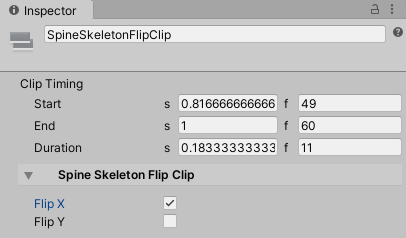
Parameters
- Flip X. Flips the skeleton along the X axis during the extents of the clip.
- Flip Y. Flips the skeleton along the Y axis during the extents of the clip.
Usage
- Add
SkeletonAnimationPlayableHandlecomponent to your SkeletonAnimation GameObject, or theSkeletonGraphicPlayableHandlein case ofSkeletonGraphic. - With an existing Unity Playable Director, and in the Unity Timeline window, right-click on an empty space on the left and choose
Spine.Unity.Playables-Spine Skeleton Flip Track. - Drag the SkeletonAnimation or SkeletonGraphic GameObject onto the empty reference property of the new Spine Skeleton Flip Track.
- Right-click on the row in an empty space in the Timeline dopesheet and choose
Add Spine Skeleton Flip Clip Clip. - Adjust the start and end times of the new clip, name it appropriately at the top of the Inspector, and choose the desired FlipX and FlipY values.
Track Behavior
- The specified skeleton flip values will be applied for every frame within the duration of each track.
- At the end of the timeline, the track will revert the skeleton flip to the flip values it captures when it starts playing that timeline.
Known Issues
- The Console potentially logs an incorrect and harmless error
DrivenPropertyManager has failed to register property "m_Script" of object "Spine GameObject (spineboy-pro)" with driver "" because the property doesn't exist.. This is a known issue on Unity's end. See more here: https://forum.unity.com/threads/default-playables-text-switcher-track-error.502903/ - These Spine Tracks (like other custom Unity Timeline Playable types) do not have labels on them. Unity currently doesn't have API to specify their labels yet.
- Each track clip currently requires you to specify a reference to SkeletonData so its inspector can show you a convenient list of animation names. This is because track clips are agnostic of its track and target component/track binding, and provides no way of automatically finding it while in the editor. The clips will still function correctly without the SkeletonDataAsset references; you just won't get the dropdown of animation names in the editor.
- Each track clip cannot be automatically named based on the chosen animationName. The Timeline object editors currently doesn't provide access to the clip names to do this automatically.